12 August 2013

A Thousand Years-Christina Perri

0 comments


I love this song very much, very simple but powerful.


I did a guitar cover of the song, and I also put the video of acoustic version performed by Christina Perri.


"A Thousand Years" is a song by American singer-songwriter Christina Perri and David Hodges. It is taken from the album The Twilight Saga: Breaking Dawn — Part 1: Original Motion Picture Soundtrack.

Source: Wikipedia, the free encyclopedia


If you like to know the story about how she wrote the song, please visit teenvogue.com


Guitar Cover by Jhony Nunes

If you are interested to have this video, you can download here


Christina Perri performs her song "A Thousand Years" in an exclusive recording session live at The Fortress in Los Angeles, CA for The Live Room on The Warner Sound.


Continue reading →
04 August 2013

How to Create Free Online Registration Form with Google Docs (Google Drive)

0 comments


imagesGoogle Docs is a freeware web-based office suite offered by Google within its Google Drive service. It also was a storage service but has since been replaced by Google Drive. Wikipedia

I know many organization who host a seminar/workshops provide Registration Form for their participants to download and submit through email after completing the registration form. There are many online tools out there that provide free with limited number of forms, and so on.

This time I want to introduce Google Docs which is free and no hidden cost. It will combine Google Doc-Form and Google Doc-Spreadsheet. The Google Form will take care of the form interface for users and Google Spreadsheet will take care the results/entries when users submit their forms in Excel Format.

Interesting hah?

Requirement: Gmail Account & Internet Connection

1. Open Google Docs at https://drive.google.com/‎ and sign in with Google account

clip_image002

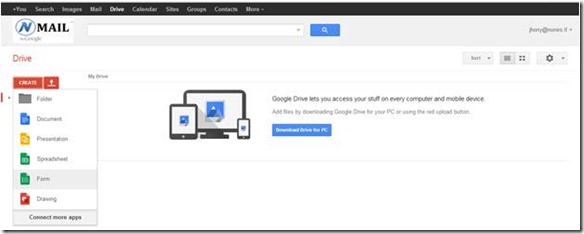
2. After signed in, we are going to create New Form for our Online Registration purpose. Click Create >> Form
clip_image004

3. A new windows will open, showing you how the form will works. Create, Share, Send and Analyze. Click on Get Started.

clip_image006

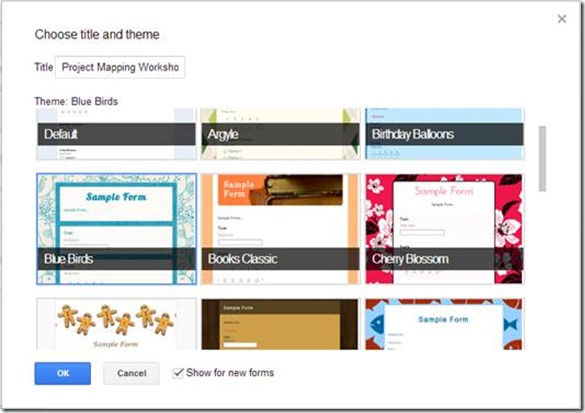
4. Choose Title and Theme for your Registration Form. Name your form and choose any theme and click OK.
clip_image008

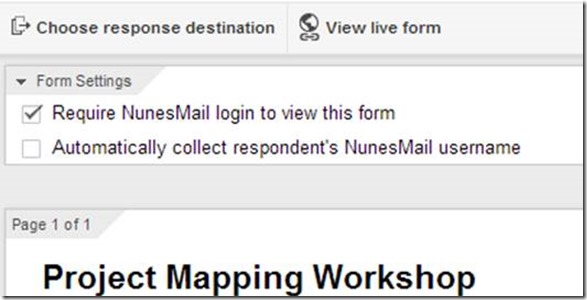
5. On top of the form, Un-tick the mark in the Require Gmail login to view this form
clip_image010

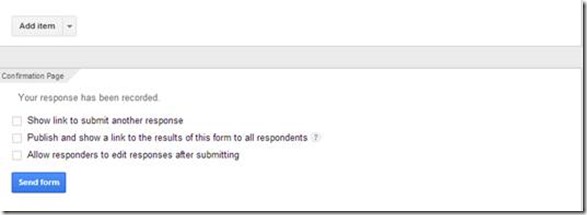
6. After type your questions into form, click Send (it will publish the form)
clip_image012

7. It will show options to share via Facebook, Gmail, Twitter or Send Form via email…if you want to put the link to your website, click embed…as I want to just share the link to the form in my website, I will send the link of the form to my email. Type email address and Send

clip_image014

8. It will ask the destination of the Form Result, so I will automatically record an entry when users submit the form. Just click create, it will create New spreadsheet YourFormTitle (Responses)
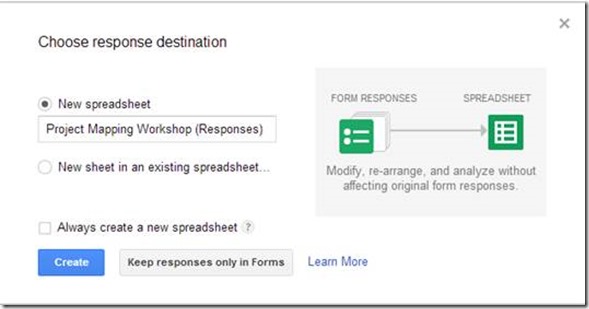
clip_image016

9. Congratulation. Your form is ready for use.

To test this form, please click here. Complete the Form and click Submit

clip_image018

Back to My Drive, there are 2 new files, to view the responses, click the spreadsheet.
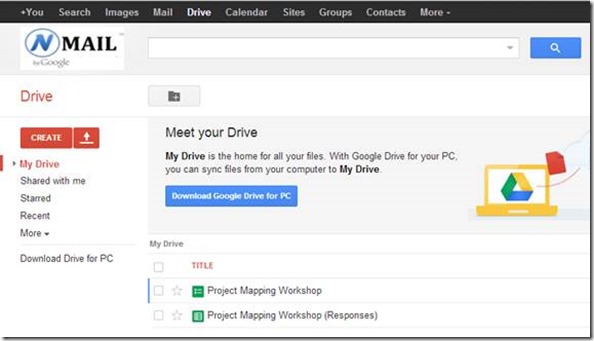
clip_image020

This is the sample of Excel Spreadsheet, results of my form submission.
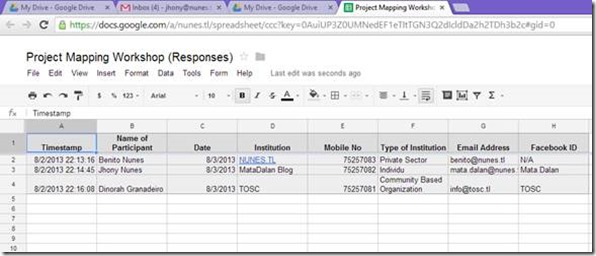
clip_image022

Hit Like and Share, if you find this useful.

Special Notes:

I was looking after my son Benito when writing this guide, it was too late when I hear his crying voice, he had already fallen down from bed. This guide, specially dedicated to my son, Benito Granadeiro Nunes (9 months old when I wrote this guide, 3 August 2013.) I was so sorry for him because could not be a good father for the first time,after being a father for 9 months.

Continue reading →
20 March 2013

Recover Unallocated Hard Disk

0 comments

imageA friend of mine bring me an external hard disk that suddenly become undetected and after further investigation, I found it’s unallocated.

Because too many important files, I need to recover the partition as it is, without losing any data.

After browsing many sites, I found the freeware partition software that could recover the lost/damage partition. it’s called MiniTool Partition Recovery. If you experience the same problem, you can use this software and the complete HowTo guide from this link http://www.minitool-partitionrecovery.com/recoverymore.html.

Continue reading →
12 March 2013

Not All Mobile Devices Can Use 3G Data Internet Package of Telkomcel.TL

0 comments
Regular mobile and modem, will not have access to 3G Service of Telkomcel, regular mobile devices will only get 2G which is very slow. I have confirmed with Telkomcel before writing this article, they said Telkomcel got the license to operate in 850 MHz. To get more info about UMTS band frequency, please click here.

I just provide simple example for your guidance if you plan to buy a mobile phone to be used in Timor Leste, especially for Telkomcel.


Mobile/Tablet Not Supported 3G of Telkomcel, without 850 in 3G Network HSDPA Mobile/Tablet that Suporta 3G of Telkomcel, with 850 in 3G Network
Samsung P1000 Galaxy Tab

2G Network: GSM 850 / 900 / 1800 / 1900

3G Network: HSDPA 900 / 1900 / 2100


Galaxy Note II N7100

2G Network GSM 850 / 900 / 1800 / 1900

3G Network HSDPA 850 / 900 / 1900 / 2100

HSDPA 850 / 900 / 2100 - N7105


Galaxy Y S5360

2G Network GSM 850 / 900 / 1800 / 1900

3G Network HSDPA 900 / 2100


Samsung I9300 Galaxy S III

2G Network GSM 850 / 900 / 1800 / 1900

3G Network HSDPA 850 / 900 / 1900 / 2100


Samsung Galaxy Mini S5570

2G Network GSM 850 / 900 / 1800 / 1900

3G Network HSDPA 900 / 2100


Samsung I9070 Galaxy S Advance

2G Network GSM 850 / 900 / 1800 / 1900

3G Network HSDPA 850 / 900 / 1900 / 2100


The same rule apply to USB Modem or Pocket Wifi, if you plan to buy a modem, ask the specification that support 3G 850 band, so at anytime you can feel the 7,2 Mbps 3G of Telkomcel.

To check your mobile’s specification, visit GSM Arena and Search your mobile brand and model.


Telkomcel Data Internet Package

Daily: $2, Quota: 50 MB. To activate, Send SMS to 155 type “On 50M

Weekly: $15, Quota: 400 MB. To activate, Send SMS to 155 type “On 400M

Monthly:

$18, Quota: 1 GB. To activate, Send SMS to 155 type “On 1G

$30, Quota: 2 GB. To activate, Send SMS to 155 type “On 2G

$50, Quota: 3 GB. To activate, Send SMS to 155 type “On 3G

$80, Quota: 5 GB. To activate, Send SMS to 155 type “On 5G

For more information, visit http://www.telkomcel.tl/static-17-internet.html


Continue reading →
06 March 2013

Setup Email in Opera Browser

0 comments
imageI just tried Opera browser’s built-in Mail client, if you like to find alternative client like MS Outlook, Thunderbird, Eudora, and other Email Client application, you should try Opera.

download Opera browser here


Here's how I configure my email.


image


image

You can put your Gmail.

image


image


IMAP (Internet Message Access Protocol)

IMAP is not an email program in itself. Just like POP, it is a protocol
by which you can read email. IMAP allows you to view your email from
more than one place. E.g. from your desktop computer at work and from your laptop at home and from abroad and from your mobile device - multiple locations.


To
use IMAP effectively, you need to make sure that each program on each
computer that you use to view your email is set up to use IMAP. 


POP (Post Office Protocol)

POP
is suitable if you have no need to check your email in multiple
locations. If you only ever check your email on your computer at work,
for example, then POP is fine for this purpose, because it downloads all
of your emails to the computer.


For Gmail users:


Incoming Mail (IMAP) Server - Requires SSL


imap.gmail.com


Port: 993


Requires SSL:Yes


Outgoing Mail (SMTP)
Server - Requires TLS


smtp.gmail.com


Port: 465 or 587


Requires SSL: Yes


image


With Opera, I can surf the web and monitor my incoming mail at left sidebar, opening inbox will automatically opens a new tab.

image


Continue reading →
11 February 2013

How to Add Cover Photo to Twitter

0 comments

clip_image002

Prepare your cover photo with the size 1252x626

Go to Edit Profile

clip_image004

Change Header

clip_image006

Continue reading →
08 February 2013

Using OpenDNS to Filter Website from the Router

0 comments

No Client Configuration needed.

121212_0918_uzaopendnsa1

For all who want to improve work productivity in your office by blocking some of website and allow it only in specific time, this simple guide is for you.

1. Sign Up for a Free account of OpenDNS Home at https://store.opendns.com/get/home-free

2. After completing registration process & activation, go to Dashboard >> Setting>> Add Network based on your current IP address displayed on the top of the browser

clip_image002

3. First time user might need to confirm the public IP from the activation link sent to the email. To customize the blocking by category, just click on the newly added network.

4. I choose Custom so I can manually enable and disable the Social Network category as necessary.

clip_image004

5. We can get the statistic later once it configured to our router.

6. Last step, adding the OpenDNS IP to our router

For Cisco Router 1700/1800 Series

Login to router console

Remove existing DNS-Server and add it again after the Open DNS IP

Config t

ip dhcp pool LAN

no dns-server

dns-server 208.67.222.222 208.67.220.220 (and your previous DNS server IP)

wr mem

clip_image006

For simple wireless router, just login to admin page and put the IP of OpenDNS.

clip_image008

This setting applies to the network where the router is handling DHCP role.

Limitation: The free version offers no automatic schedule blocking.

Continue reading →

You might also like: